






FieldInsight Feature Release — Week 29 2026
Feature update for FieldInsight — what’s new in Week 29 2026. Here’s everything shipped to the platform this week (to 10th July 2026).
Drag-and-Drop for Line Packages
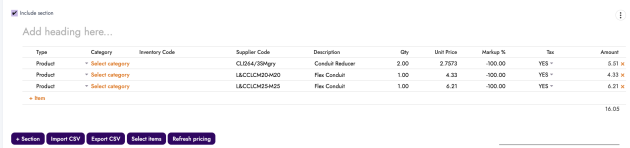
Quickly re-order items in Inventory table on Job Time & Materials, Invoice, Quote, PO or Bill inventory tables.
Why it helps
Quickly rearrange line items in the order that makes sense for your quotes and jobs without having to delete and re-add them manually.
Status Filter for To-Dos
What’s new
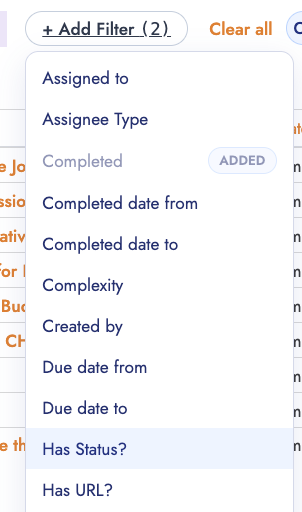
- Added a new “Has Status” filter to the to-do list
- Includes a date picker for filtering by timeframe
Why it helps
Find the to-dos you need faster by filtering based on status, making it easier to stay on top of outstanding tasks.
Unapproved Hours Link on Project Tracking
What’s new
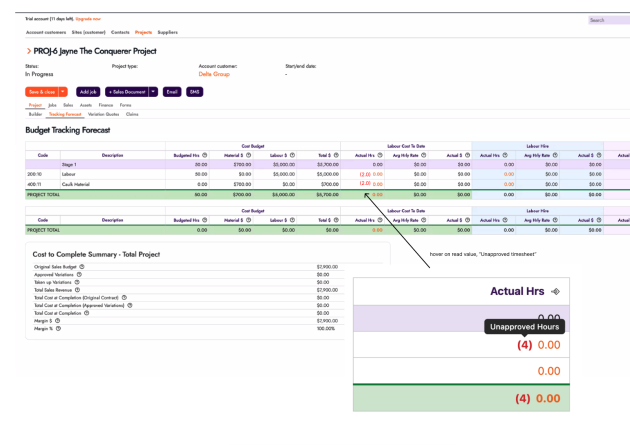
- Added a direct link to unapproved hours in the project tracking cost view
- Clear labels now distinguish between approved and unapproved time
Why it helps
Quickly identify which hours still need approval so you can keep your job costing accurate and invoicing on track.
Timesheet Notes Preserve Formatting
What’s new
- Line breaks and formatting in timesheet notes are now preserved in reports
Why it helps
Notes entered by your team in the field now display exactly as written, making timesheet reports easier to read and understand.
Service Code Required Setting for Mobile and Scheduler
What’s new
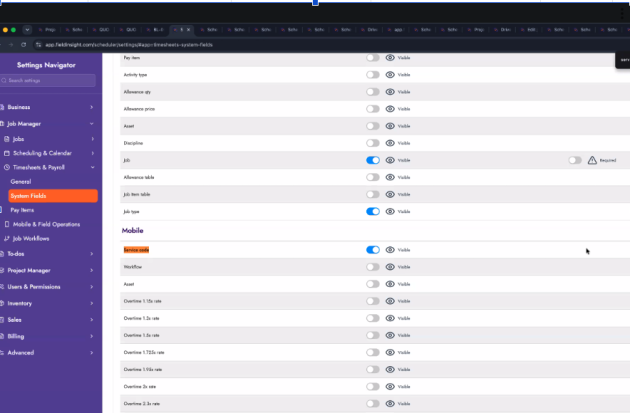
- New setting to make service codes mandatory on batches, mobile app, and scheduler
- Configure visibility and required fields in system settings
Why it helps
Ensure your team always enters service codes, improving job tracking accuracy and making reporting more reliable.
Finalize Button for Partial Receipts
What’s new
- The Finalize button is now visible on purchase orders in Partial Receipt and All Received status
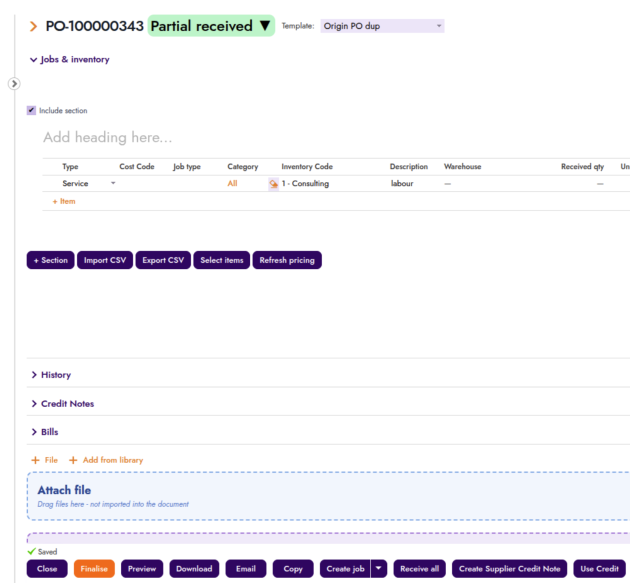
Why it helps
Close out purchase orders more easily once goods have been received, keeping your procurement workflow moving smoothly.
-
When the PO is in Partial Received status, any user should see the Email, Receive all and Finalise buttons
-
This should behave this way in mobile and scheduler
-
The email button should be changed to Purple, since it is no longer the primary next action
Status Change Buttons on Document Pages
What’s new
- Review and Approve buttons now appear directly on quote, invoice, and purchase order pages
- Approve button visible from Draft status on invoices and purchase orders
Why it helps
Move documents through your approval workflow faster without navigating away from the page you’re already viewing.
Mandatory Cost Codes for Projects
What’s new
- Cost codes can now be marked as mandatory for all projects
- Setting available in the Cost Codes section under Inventory
https://app.fieldinsight.com/scheduler/inventory/#app=cost-codes

Why it helps
Ensure consistent cost tracking across all projects by requiring specific cost codes, making your financial reporting more accurate and complete.
Frequently Asked Questions
How do I quickly change the order of line items on quotes, invoices, or purchase orders?
You can now drag and drop to reorder items directly in the Inventory table on Job Time & Materials, Invoice, Quote, PO, and Bill pages.
No more deleting and re-adding lines just to get them in the right sequence. Simply click and drag any line item to rearrange it instantly — perfect for putting materials, labour, or packages in the logical order for your quotes and jobs.
Can I quickly approve or review documents without leaving the page?
Yes. Review and Approve buttons now appear directly on quote, invoice, and purchase order pages.
You can even approve invoices and purchase orders straight from Draft status. This removes extra navigation steps so your team can move documents through the approval workflow faster while staying on the page they’re already viewing.
How do I quickly see which hours still need approval in project tracking?
In the Project Tracking cost view, we’ve added a direct link to unapproved hours, along with clear labels that distinguish approved and unapproved time.
This makes it much easier to spot outstanding approvals at a glance, helping you keep job costing accurate and invoicing on track.
These three cover productivity (drag-and-drop), workflow speed (in-page approvals), and financial visibility (unapproved hours) — a nice mix for a blog post.
Would you like me to adjust the tone, add more detail (e.g. how to enable settings), create a fourth one, or turn these into a longer “Feature Highlights” section instead?
What You Should Do Now
- Book a Demo. You’ll be in touch with an automation expert who has worked in this space for over 5 years, and knows the optimal workflow to address your needs.
- If you’d like access to free articles about managing HVAC workflows, go to our blog.
- If you know someone who’d enjoy reading this page, share it with them via email, Linkedin, Twitter, or Facebook.